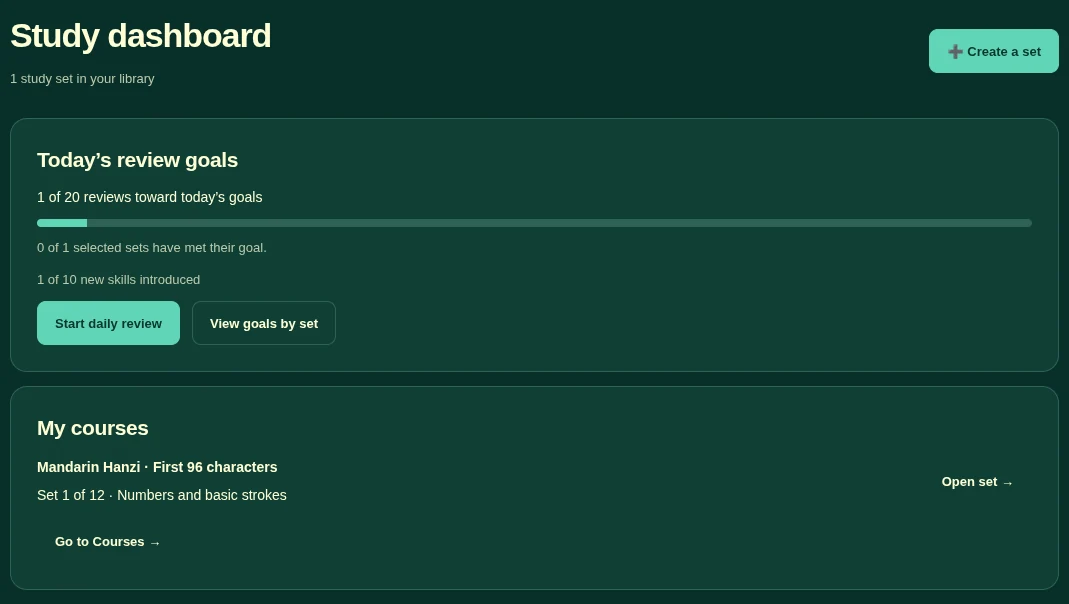
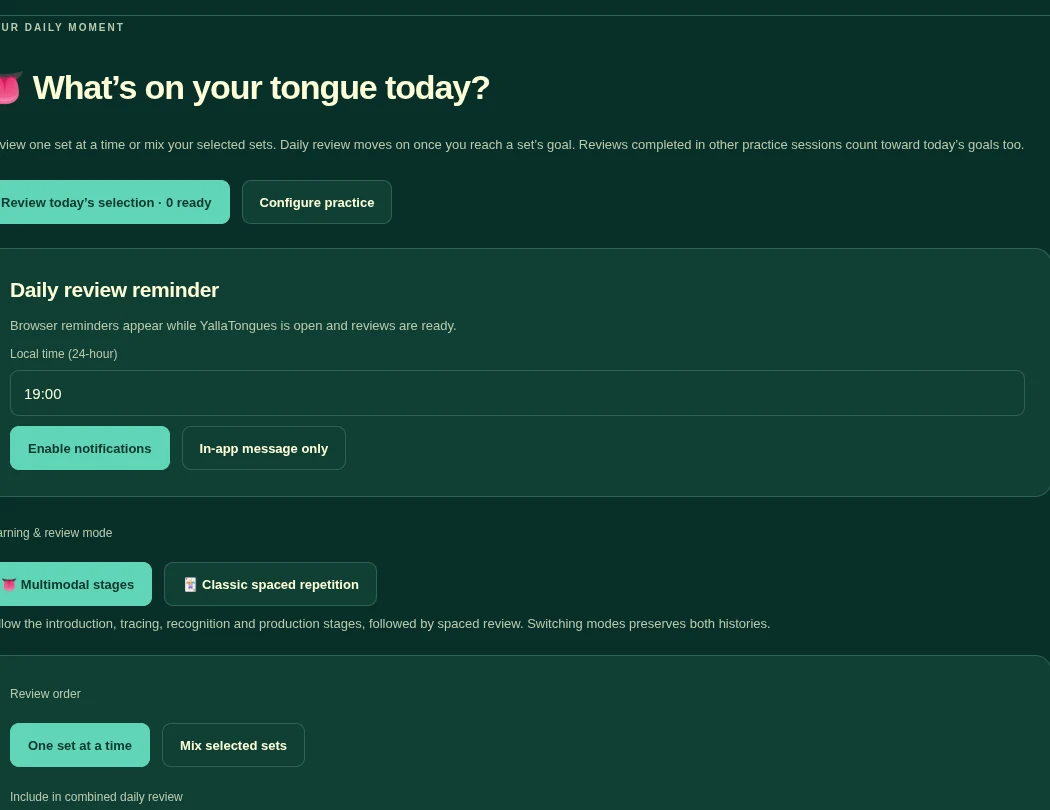
Daily review and goals
On My study sets, the dashboard shows your library size, daily goals, and which lesson you’ve reached in courses you’ve started.
- Open Daily review. Include the sets you want, or make a saved group and choose Selected saved groups.
- Set Review order to One set at a time to move between sets as you reach their goals, or choose Mix selected sets to interleave them.
- Choose Review today’s selection. To work on a single set, use Review set in the list or Daily review for this set on the set page.
Open Show progress & goals to adjust the review and new-material targets for a set. Practice completed elsewhere also counts toward the daily goals. Review settings include reminders and a choice of review modes. If the browser or device asks for notification permission, grant it to receive reminders there.
Find, create, and edit study sets
A set is a collection of terms, signs, or other prompts with answers. Browse Discover for existing sets. Open one and save a copy to study or edit it in your library.
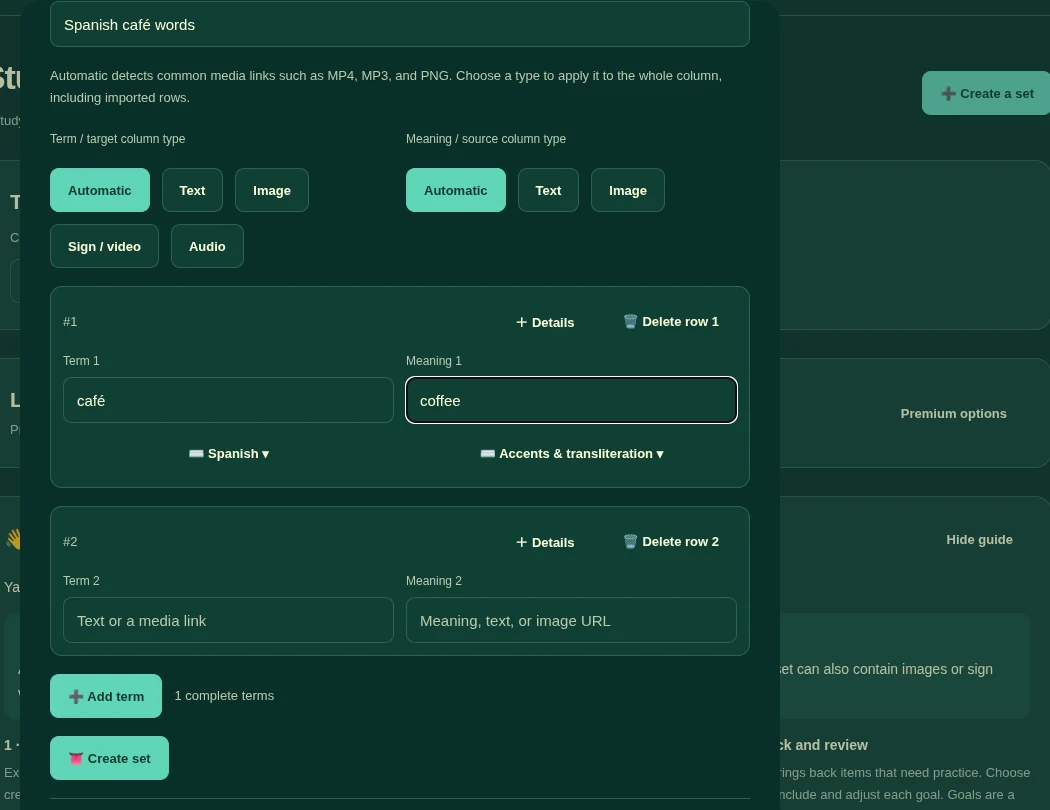
- Choose Create a set from My study sets. Enter a name and fill in the Term and Meaning columns. Choose Add term to create another row.
- Open Language options to set the study and source languages. Open a row’s Details to add readings, transliteration, example sentences, notes, or audio. Use column types when importing direct image, sound, or sign-video links.
- Choose Create set. When you return to the set, use Edit set and Save changes to update it.
New sets are private. The set page offers a separate action to publish a public edition. For examples of prompts that are easy to study, see the study-set writing guide.
Import and export sets
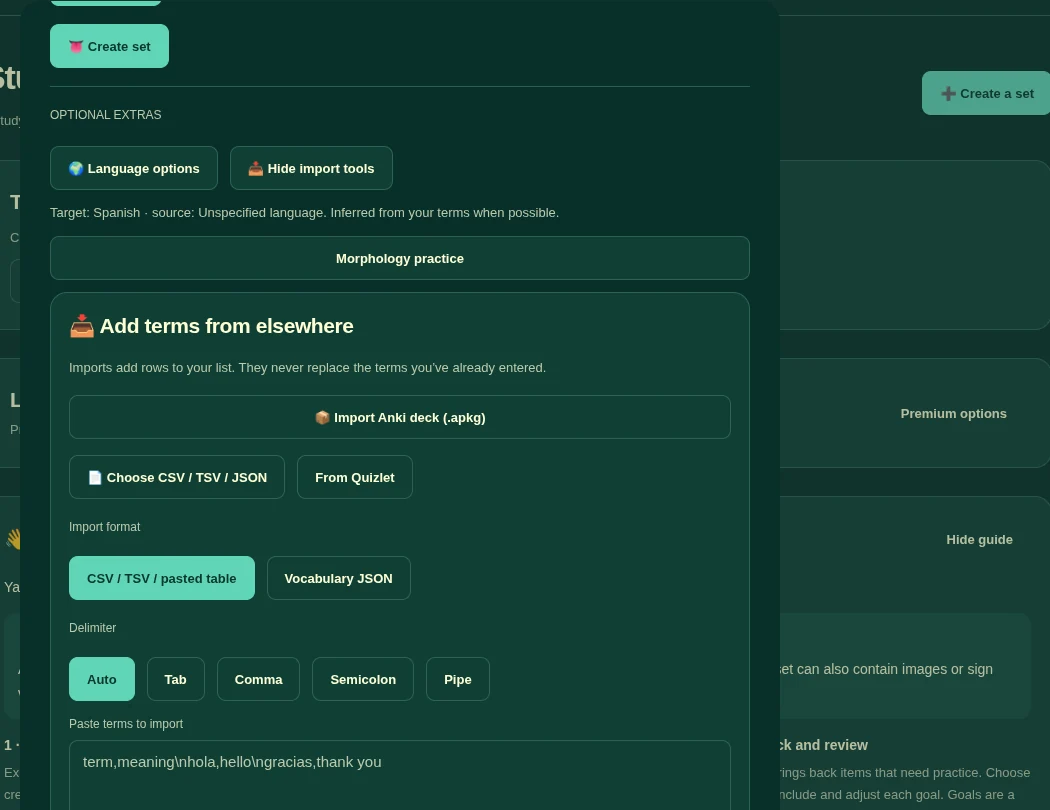
- Open the set editor and choose Import terms instead.
- Paste a comma- or tab-separated table, pick Choose CSV / TSV / JSON, or use the Anki import option. For a Quizlet export, choose tabs between fields and a new line between cards, then paste the result.
- Preview the import and check that the target and meaning fields are in the expected columns. Add the terms and save the set. Start with a few rows if the file has unfamiliar formatting.
On the set page, ↓ Export downloads a TSV for use in a spreadsheet or another import. For review progress, preferences, and all sets together, use the library backup.

Set learning options and multimodal review
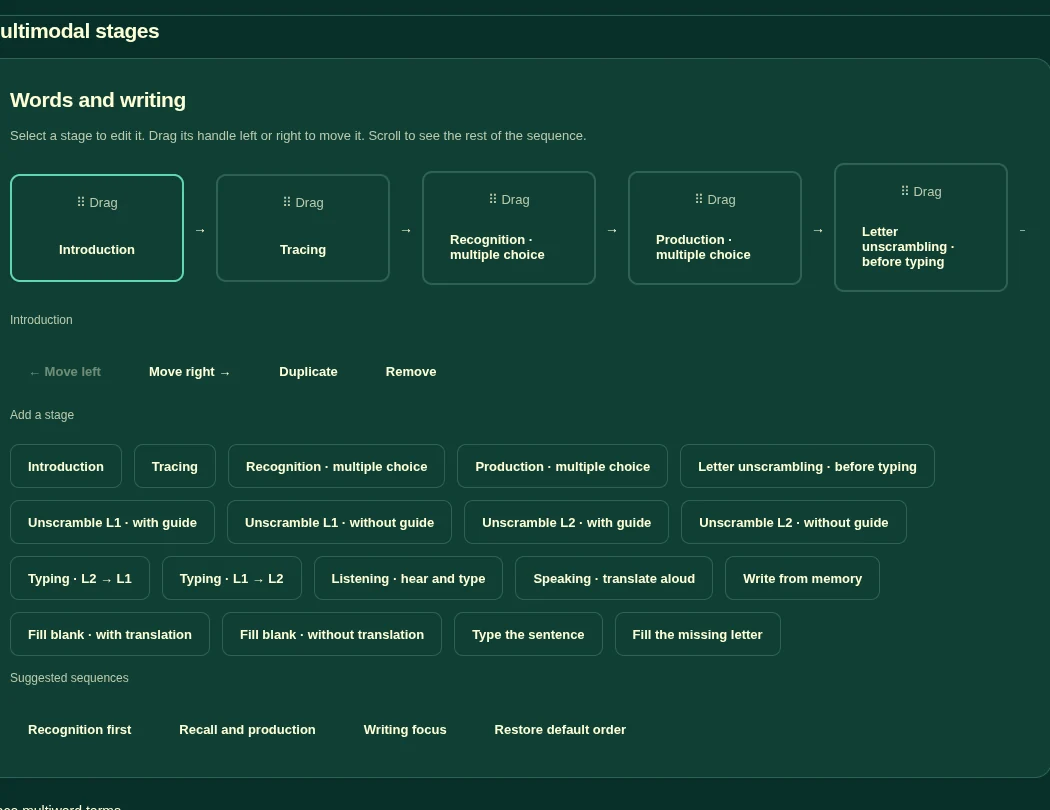
Open a set and expand Learning options. In Multimodal stages, choose the steps that fit the material and their order. Use an introduction to see a new item, recognition to pick its meaning, and production to recall its form.
- For a writing system, choose which written forms, readings, transliterations, and meanings to show or practice where available. Set the study term order to first-to-last, last-to-first, or random.
- For a sign-video set, practice video-to-gloss and gloss-to-video recognition, matching, and signing with an optional camera where the set supports it.
- For due-card review with self-ratings, use Review mode on Daily review to choose the Anki-style option. To practice a specific exercise right away, choose it from the set’s Practice your way section.
Exercise types
Expand an exercise to see real prompts, actions, and feedback from YallaTongues. Open Help & info and add the quick-start practice set to try the main modes yourself.
Introduction and flashcards
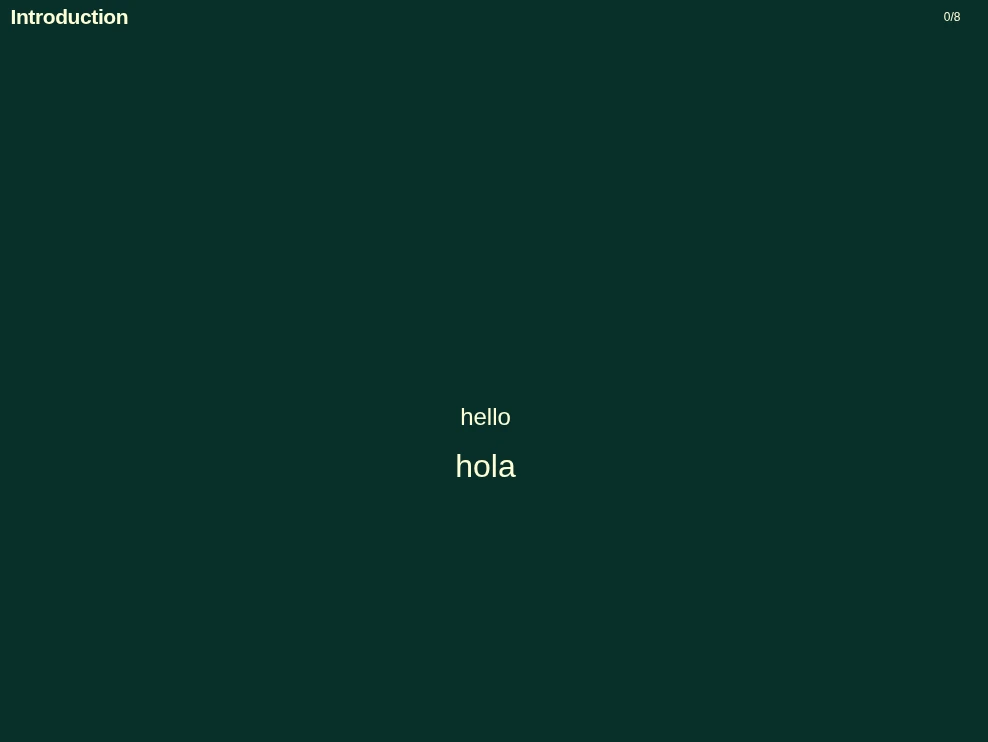
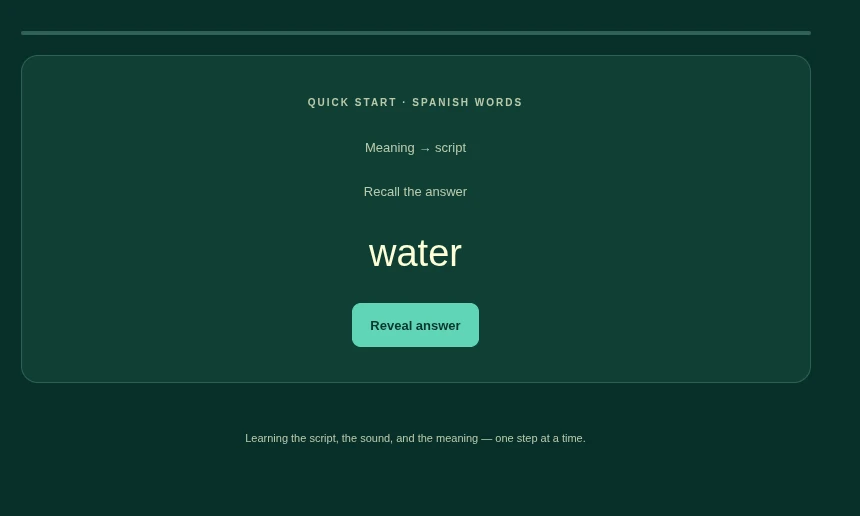
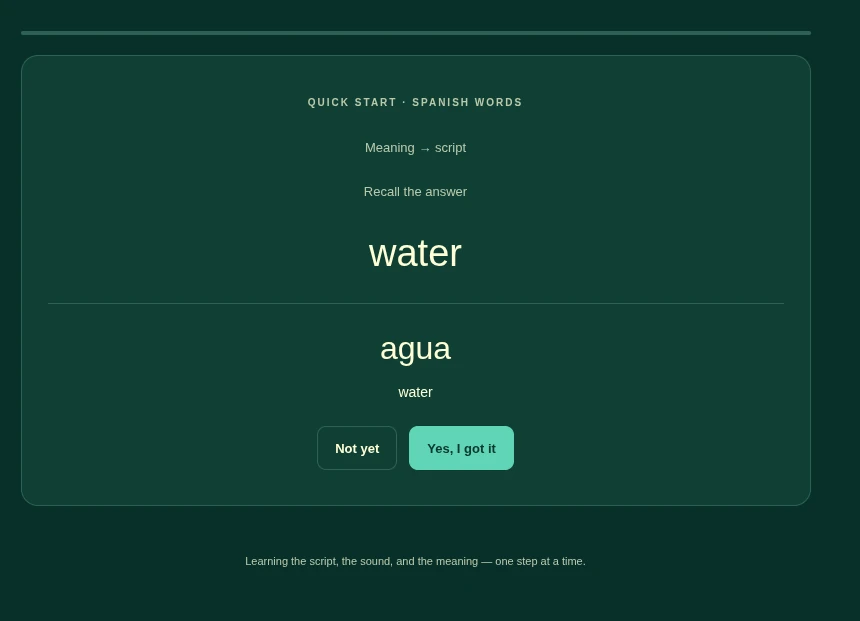
Daily review can introduce a word before you practice it. In Flashcards, think of the answer, reveal it, and rate whether you recalled it.
Multiple choice and matching
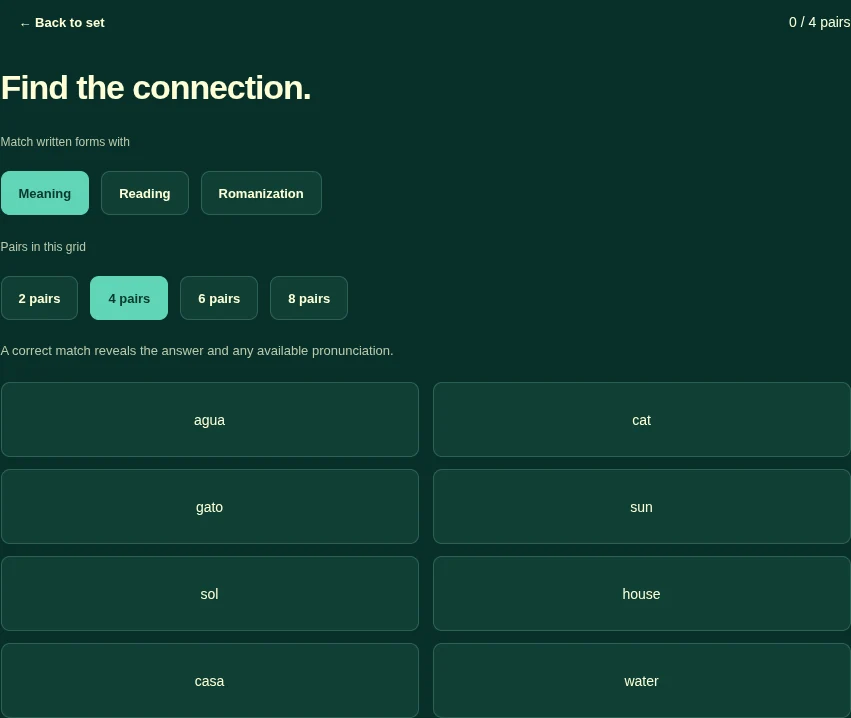
Pick an answer to a single prompt, or match several words to their meanings. Use the pair-count selector when you want a larger or smaller grid.
Typing
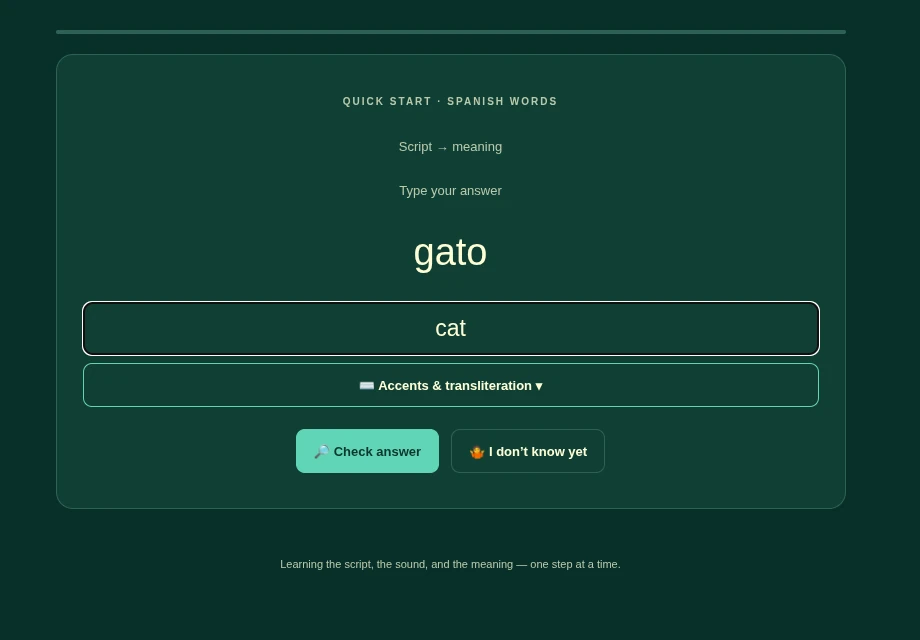
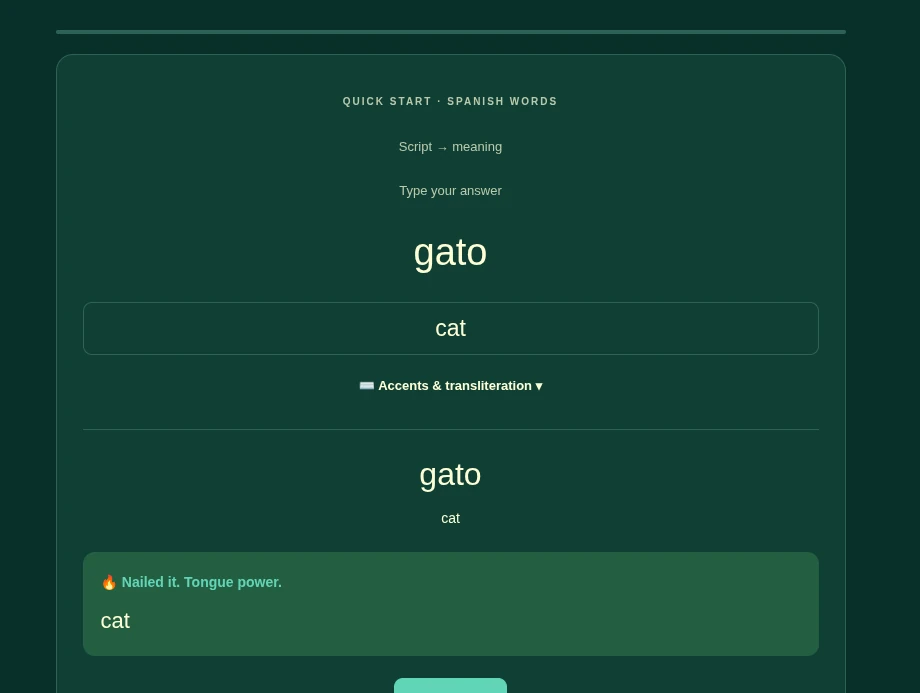
Type the requested form and check it. The exercise shows the expected answer and can offer a correction or the next item.
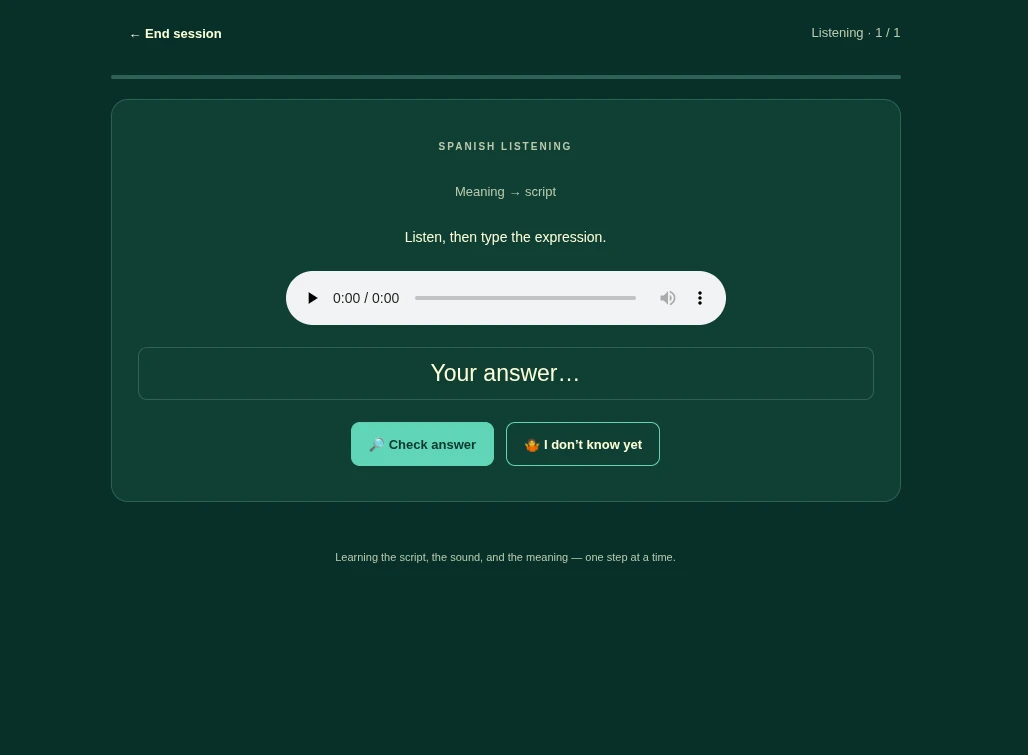
Listening
Play the recording, then type what you heard. Listening is offered when your set has a recording or your device has a voice for the language.
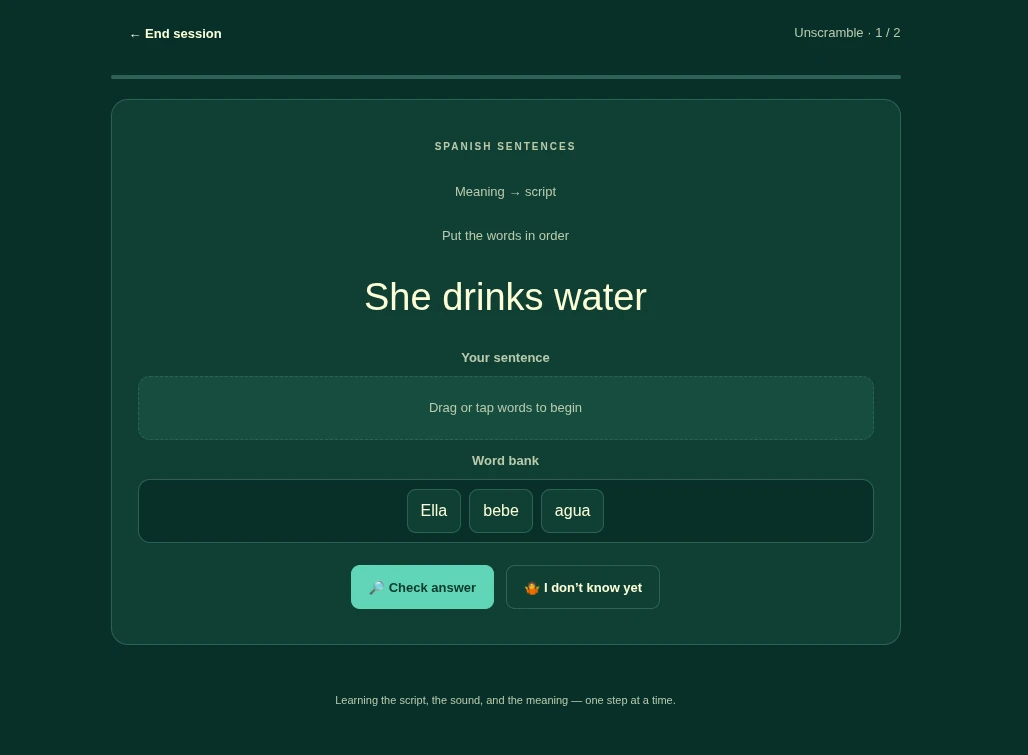
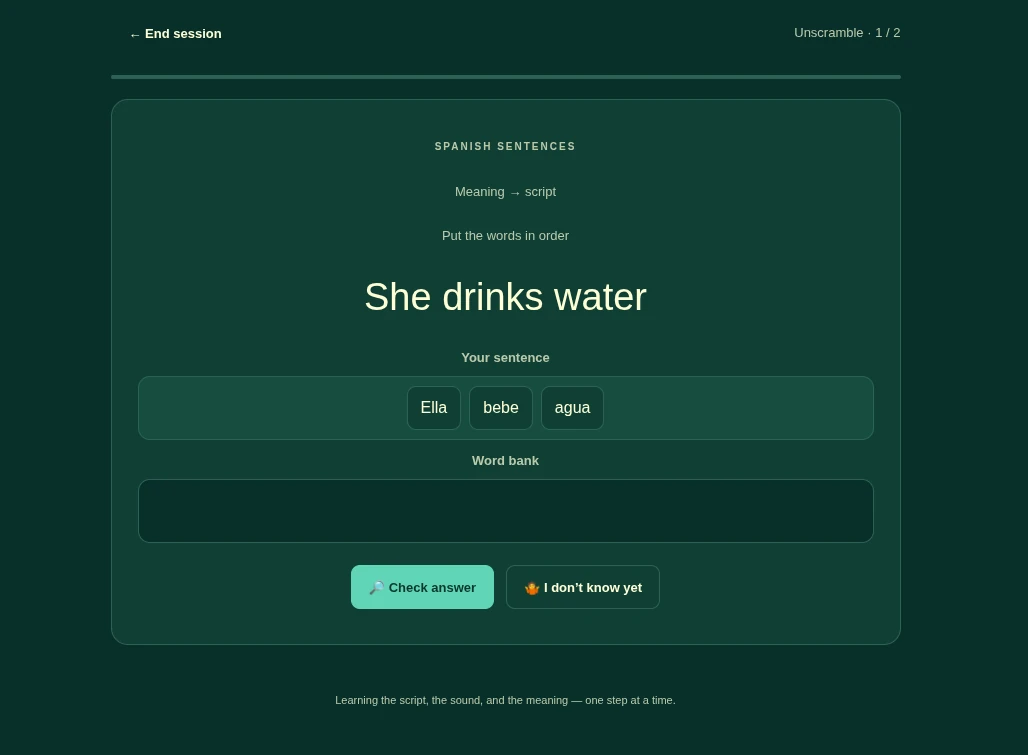
Sentence unscramble
Select blocks to build a sentence in the answer area. Where dragging is available, use it to change the order.
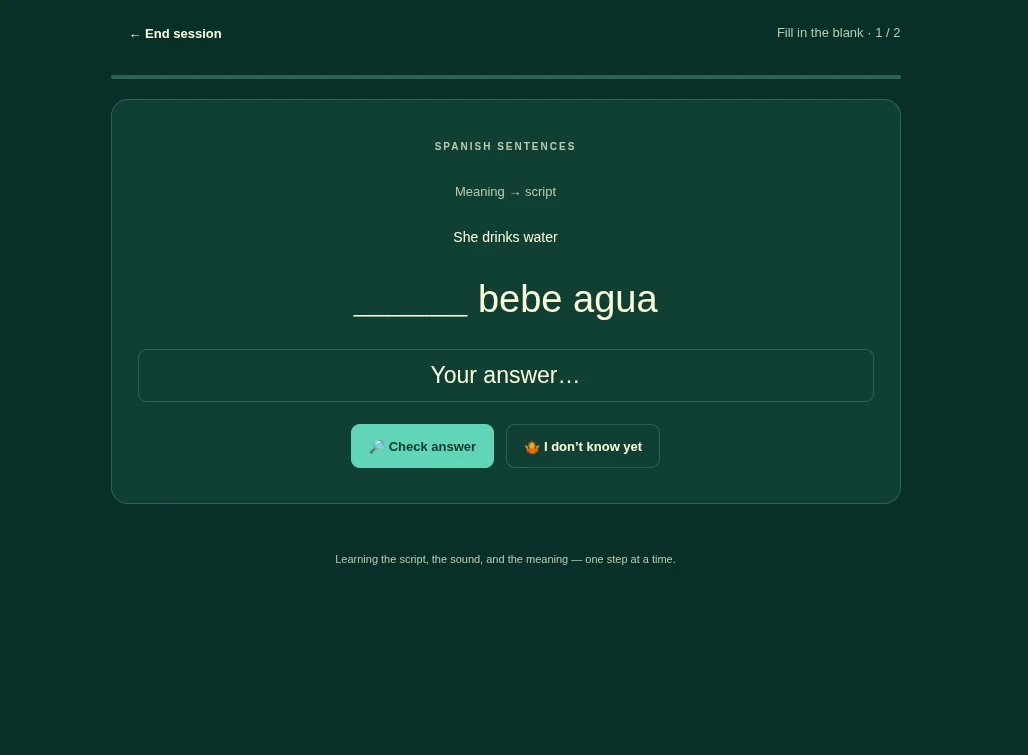
Fill in the blank
Use the sentence around the blank to identify the missing word. Example sentences on your cards give review more context.
Tracing
Follow the displayed strokes or write from memory, depending on the set. Supported scripts can check the stroke count, order, path, and direction.
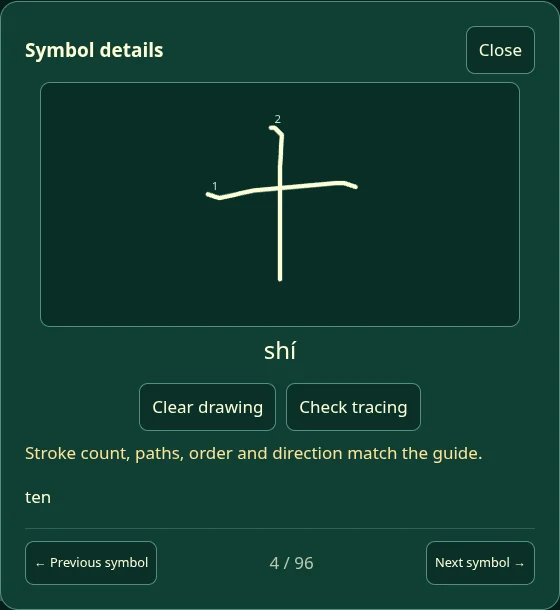
The options change with the material. Listening uses recorded audio or an available voice, Japanese sets can ask for a kanji reading, and sign-video sets can use video-to-gloss and gloss-to-video recognition or optional camera practice.
Writing system charts and courses
- Open the learning library and choose a course. Try Tifinagh, Arabic script, Egyptian hieroglyphs, Hiragana, or Mandarin Hanzi.
- Scan the symbol grid, then select a symbol to see it larger. Use the available tracing, audio, and practice controls.
- Choose Open interactive course to work through the full lessons and track course progress from the dashboard.
Look up words and save entries
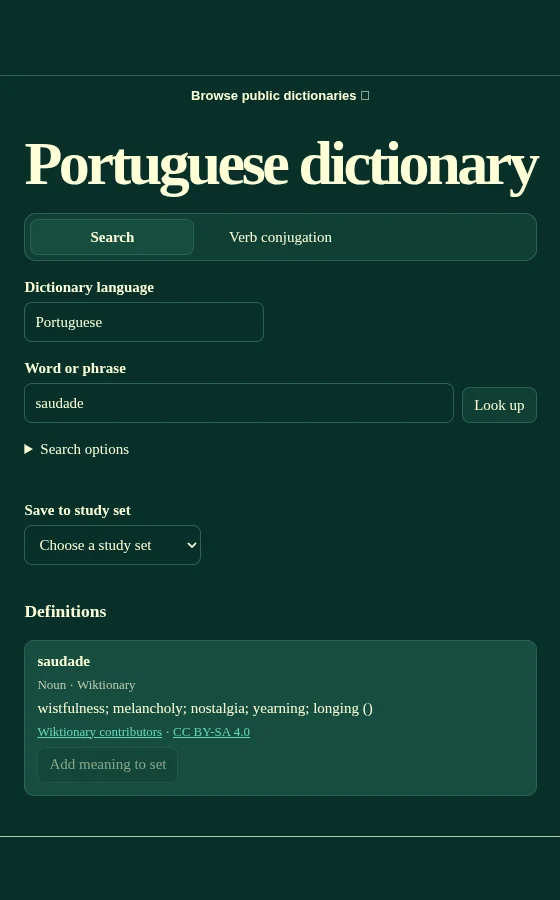
Open Dictionaries and pick a built-in dictionary or a labeled external source. Bookmark the dictionary’s page for direct access. Search in the target language or try a meaning in your source language. Available definitions, translations, audio, and reverse search depend on the source.
When an entry offers a save option, open it and choose the study set you want. Check the selected meaning before adding it.
Immersion with video, audio, and reading
Open Immersion. Set your study language and definition language, or try automatic study-language detection. Browse Suggested content and filter it by language, type, title, or recorded audio.
Video and clickable captions
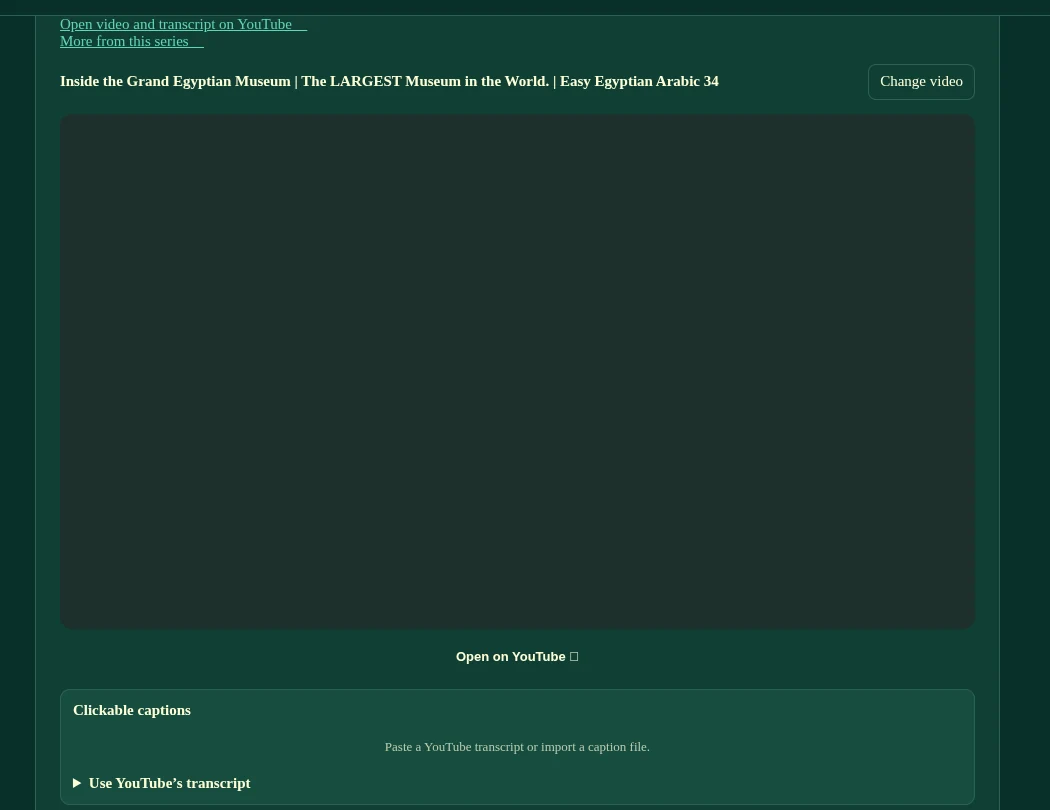
Choose Video and open a suggested episode, paste a supported link, or choose a video file. For an Easy Languages recommendation, the YouTube link opens the original video, where available transcripts can be copied. Paste the transcript with its timestamps in Immersion, or import captions using the file picker. When the captions appear, select a word to open lookup or choose a timestamp to jump to that cue.
Audio and narration
Choose Audio to open a recording. Import timestamped captions if you have them. The timeline lets you choose the part of the recording you want to study. If transcription is offered for the media, select the range or use the full recording. For Kalila wa Dimna and other readings with narration, use Read & listen and play the recording in the reader.
Read and look up a word
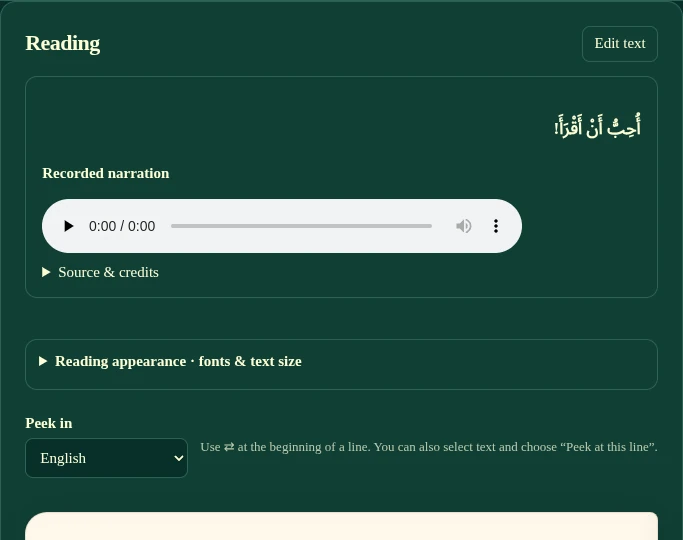
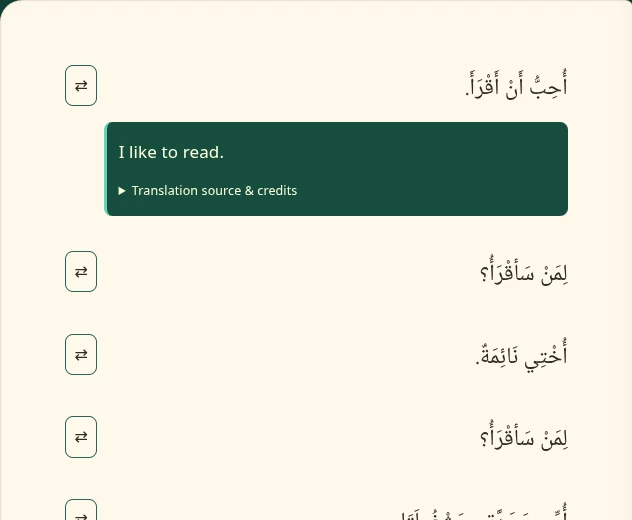
Choose Reading, then paste a passage, open a text file, or pick a suggested story. Tap a word to open lookup and add a result to a study set. For supported parallel editions, use the translation control beside a line to peek at the corresponding text.
Customize reading appearance
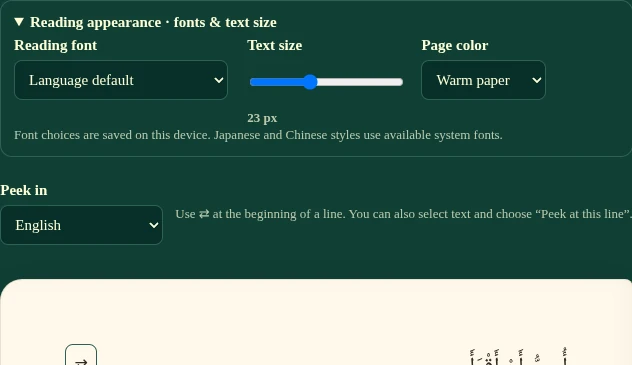
With a passage open, expand Reading appearance · fonts & text size. Pick a font, adjust the size slider, and choose warm paper, night reading, or the app theme. Choices are saved on the current device. Font availability varies by script and device.
Arcade and Quickfire
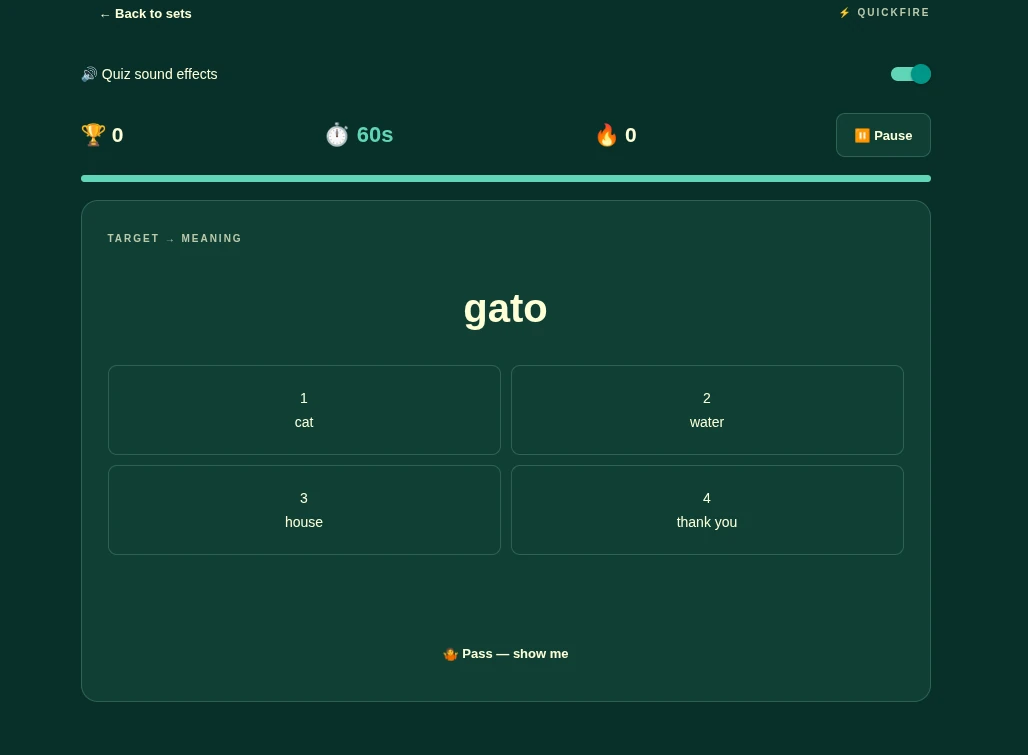
Choose Arcade or Quickfire quiz in the app navigation. You can also start from a compatible set’s Practice your way section. Choose your study material at the launcher, then choose a game. If a set is too small, add more distinct terms and meanings.
Play the short clips below to see how the games move. Quickfire is a timed quiz with streaks and answer feedback. See its round in Exercise types.
See the game launcher
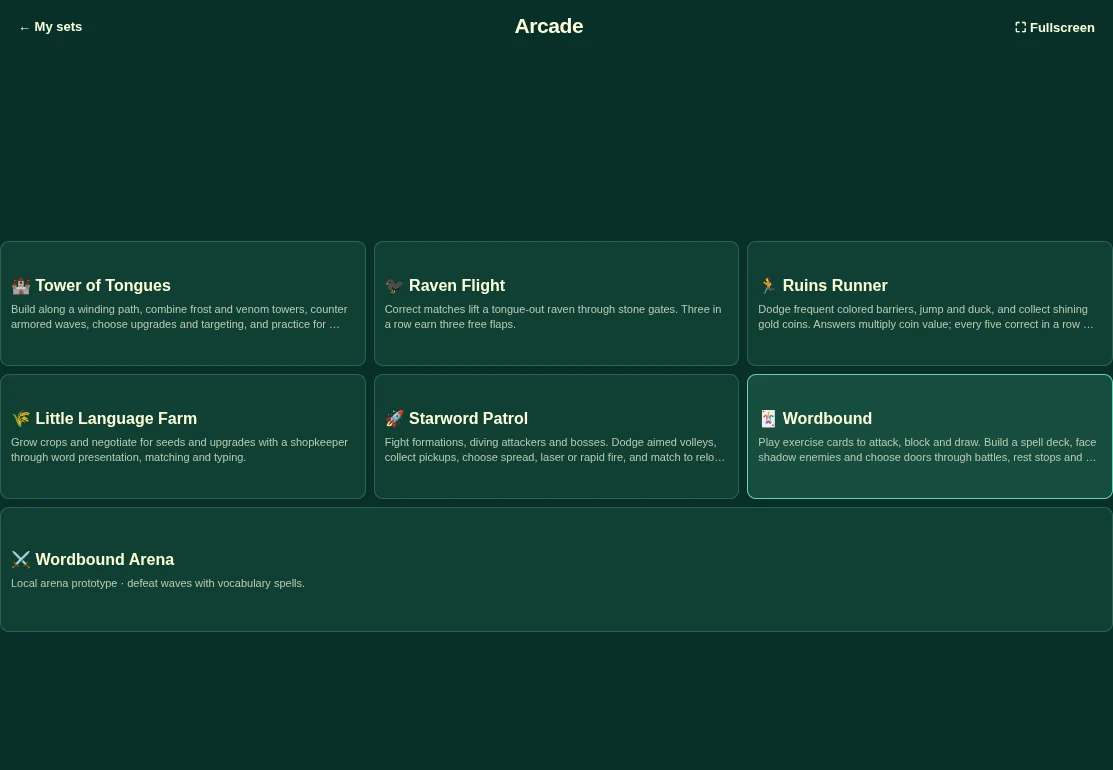
Tower of Tongues
Build and upgrade towers along a path. Use vocabulary practice to earn building coins.
Raven Flight
Choose the matching answer to flap through the gates. Correct streaks can earn free flaps.
Ruins Runner
Jump or duck around obstacles and answer vocabulary questions to increase the value of coins.
Starword Patrol
Steer through waves of enemies. Match words to reload and upgrade your weapons.
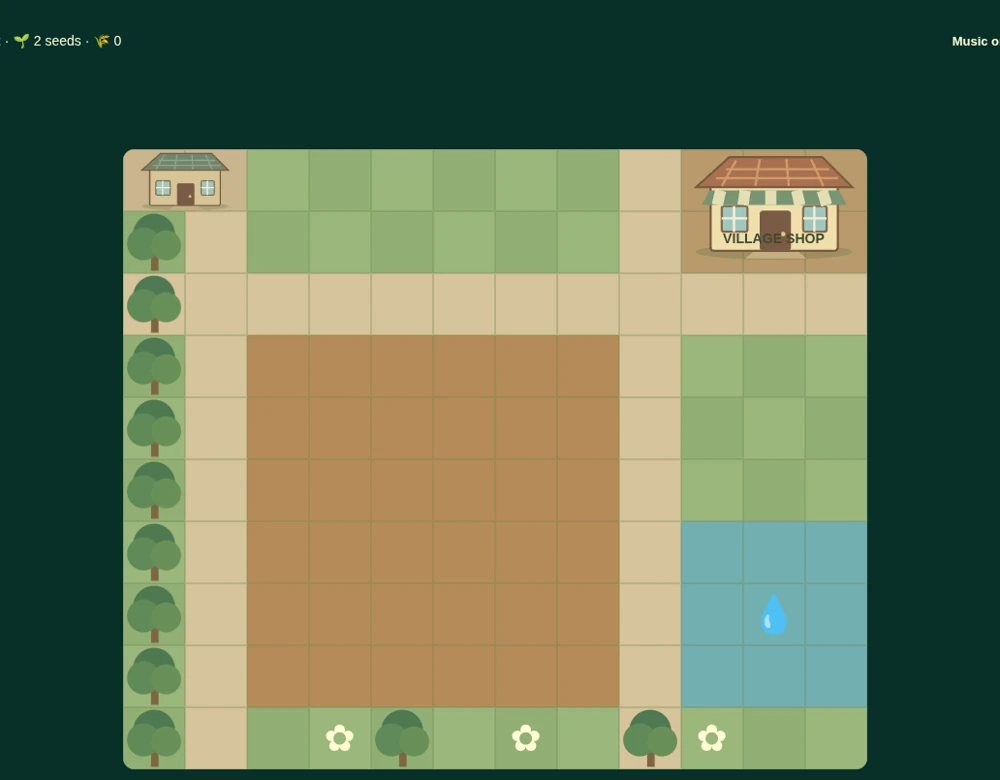
Little Language Farm
Move around the farm, tend plots, and practice vocabulary when shopping for seeds and upgrades.
Wordbound
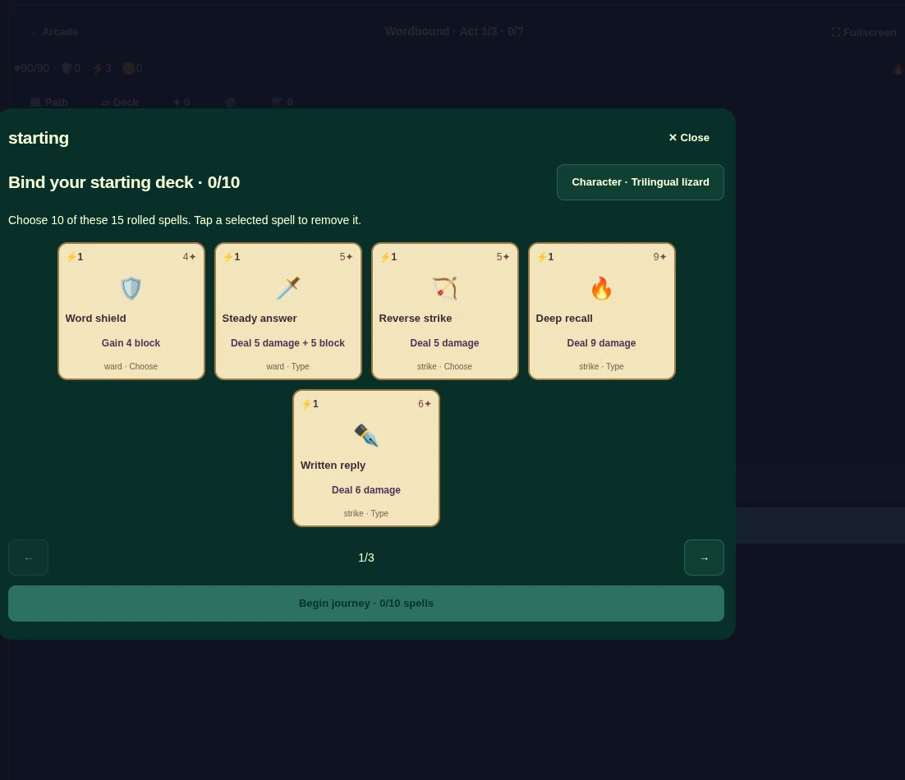
Choose your starting spells, then play cards during encounters. Exercises can power the actions on your cards.
Wordbound Arena
Move and fight in a local prototype. Recall questions can recharge spells during the fight.
Local saving, backups, and restore
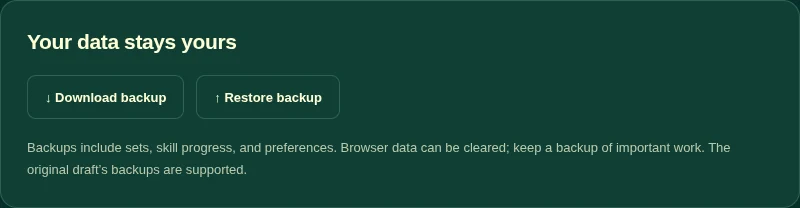
Sets, review progress, and preferences save on the device where you study. On the web, keep using the same browser profile and account. Browser data can be cleared, so keep a separate backup of important work.
- Choose ↓ Backup in the app header, or open Account and select Download backup. Keep the JSON file somewhere you can find it later.
- To move an existing guest library into your account on the same device, sign in and use Copy guest library into account in Account.
- To restore a JSON library backup, open Account and choose Restore backup. First download a backup of anything you already have on that device. Restoring replaces the current library.
Premium, ads, and learning statistics
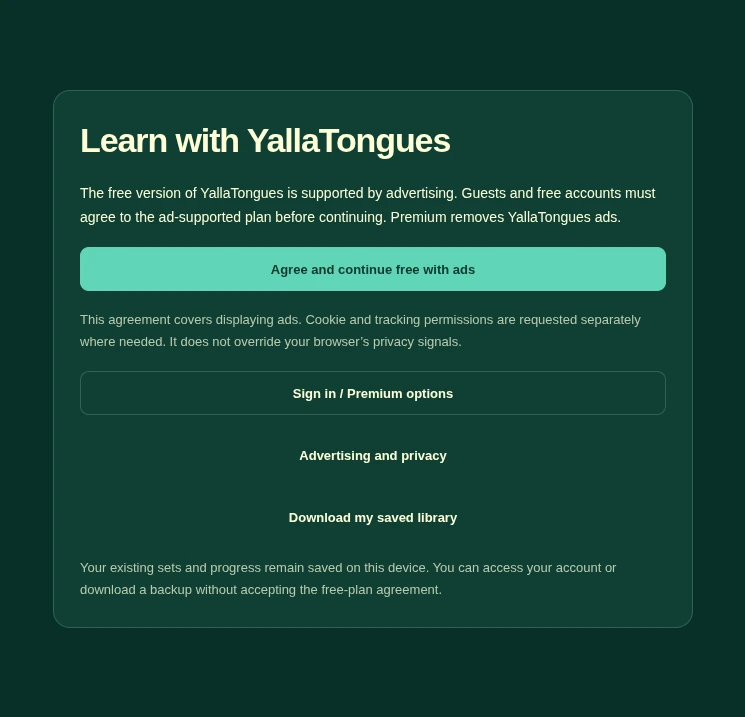
The free web version is supported by ads. The access screen offers Agree and continue free with ads, a link to Advertising and privacy, sign-in and Premium options, and a way to download the saved library. Premium removes ads when your subscription is active and recognized.
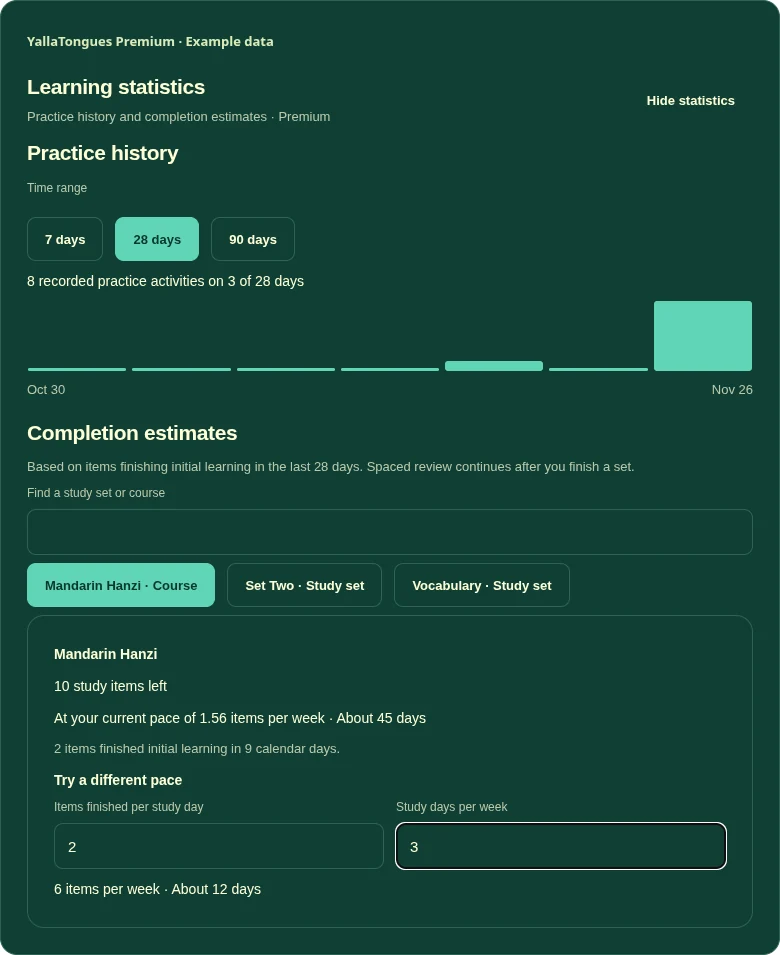
With Premium, sign in to the same account on each device to sync your private library. The Premium learning statistics show study history and estimates for how long sets and courses may take at the current pace. Open Account for current Premium options and subscription management.
Delete your account
- Download a local library backup if you want to keep your sets and progress.
- Open Account while signed in and find Delete account. Read the confirmation, type DELETE, and select Permanently delete my account only when you are ready.
- Manage any active subscription separately through the store or billing provider you used. Deleting your YallaTongues account does not cancel a store subscription.
See the privacy policy for details about account data and your choices.